IBO Player setup guide
Everything needed to get a TeleNorth subscription playing: installation on every major platform, playlist activation, and the settings worth changing on day one.
Among the IPTV applications available today, IBO Player is one of the very few that can be found on almost any platform and operating system. The tidy interface is not the only draw — smooth playback on non-Android Smart TVs is what keeps it on our recommended list. TeleNorth supports IBO Player exclusively, on one device per subscription.
Before you start
- An active TeleNorth line — take the CA$10.99 intro month if you do not have one yet
- A connection of roughly 12 Mbps for HD, 25 Mbps for comfortable 4K
- The credentials email we sent you (portal URL, username, password, or a single M3U line)
- Ten to fifteen minutes — most installs finish well inside that
What is good and less good about IBO Player
Installs on almost any device
IBO Player is available for practically every operating system, from Android through to Linux. The developer publishes a direct download for each platform, which removes the usual hunt for a compatible build.
A strong choice for non-Android Smart TVs
Ask any IPTV subscriber where the real hardware headache lies and the answer is Smart TVs that do not run Android. Those closed operating systems make life difficult for app developers — IBO Player is one of the rare apps that ships natively for them.
No recording, no multi-screen
The application has no recording function and no picture-in-picture or multi-screen mode. Neither is needed for day-to-day viewing, but it is fair to know before you install. TeleNorth’s seven-day replay covers most of what recording would have been used for anyway.
Remote playlist activation, and a licence fee
Rather than typing credentials into the TV, IBO Player uses remote activation: you register the device on the IBO portal and push the playlist to it. IBO offers a short five-day evaluation period, after which the developer charges a one-off licence fee for the application itself. That fee goes to IBO, not to TeleNorth — your subscription price is unaffected.
Install IBO Player on Android phones and tablets
- Download the installation file from the official IBO Player website.
- Android will warn you that the file came from outside the Play Store. Choose Download anyway — this is expected for side-loaded apps.
- Open the downloaded file.
- Tap Install.
- Open the app once installation completes.
- An introductory screen appears explaining the activation flow. Note the device details shown — you will need them shortly.
- The app is loaded and ready for a playlist.
Install IBO Player on Windows
The Windows build requires Windows 10 or newer and is published for 64-bit systems.
- Download the Windows installer from the official source.
- Windows SmartScreen will interrupt because the file did not come from the Microsoft Store. Click More info.
- Click Run anyway to continue.
- Click Next.
- Tick the desktop-shortcut box if you want one, then Next.
- Click Install.
- Click Finish to launch IBO Player.
Install IBO Player on an Amazon Fire TV Stick
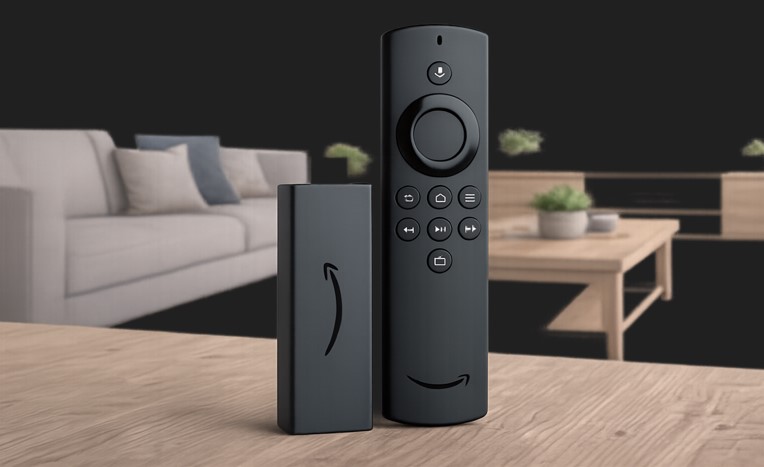
- From the Fire TV dashboard, highlight the magnifier icon and press OK to open search.
- Type D and select the Downloader app — it lets you side-load applications from outside the Amazon store.
- Select the app to begin installation.
- Click Download.
- When prompted to grant media access to Downloader, choose Allow.
- Once Downloader opens, move to the URL field above the yellow Go button and press OK.
- Enter the official Downloader code for the IBO Player Android build — 511693 — then select Go.
- The download starts from the official site. Leave the remote alone until it completes.
- Wait for the progress bar to finish.
- Fire OS will block the install because the file came from outside its store. Choose Settings.
- Open Install unknown apps. If Developer Options is not visible, go to Settings → My Fire TV → About and press OK on the device name seven times to reveal it.
- Select Downloader and toggle it from OFF to ON.
- Return to the installer and confirm through the usual Next / Install prompts.
- A first-run message appears. Click OK.
- The app is ready for its playlist.
Install IBO Player on macOS
- Open the official IBO Player download page and take the macOS build.
- Open the downloaded file and drag the icon into your Applications folder.
- After about ten seconds the app is installed. Open Launchpad and click the icon.
- macOS refuses the first launch because the app came from outside the App Store — this is normal.
- Click the Apple menu, choose System Settings, scroll to Privacy & Security and find the blocked-app notice near the bottom.
- Choose Open anyway. The permission is permanent — later launches go straight through.
- The application is ready.
Install IBO Player on LG and Samsung TVs
This is the route most TeleNorth subscribers in Canada take. The example below uses an LG webOS set; Samsung, Toshiba and Philips follow essentially identical steps through their own app stores.
- Open the LG Content Store (or the Samsung Apps store).
- Click the magnifier icon in the top-right corner to search.
- Type IBO Player.
- Pick the correct result. You will see look-alike names — ignore them and select “Ibo Player”.
- Click Install.
- Select Launch to open it.
- A welcome message appears on first run. Continue to the playlist section below.
Add your TeleNorth playlist to IBO Player
IBO Player uses remote playlist activation. Instead of typing your credentials on the TV remote, you register the device on the IBO portal from a phone or computer and push the playlist across.
- On the IBO Player website, open Manage Playlist from the top menu.
- The portal asks for a MAC address and a device key.
- On your TV or box, open IBO Player, select the person icon on the dashboard, and read the Device Info panel in the top-left. Both values are there.
- Type them into the portal form and log in.
- You are now in the playlist manager. Choose one of the two methods below depending on what TeleNorth sent you.
Method A — Add Playlist (M3U / streaming line)
Use this if your credentials email contains a single long URL.
- Click Add Playlist.
- Playlist name: anything you like — “TeleNorth Living Room” works well.
- Playlist URL: paste the streaming line exactly as we sent it, with no trailing spaces.
- XMLTV EPG URL: leave this empty. IBO Player will pull the programme guide from the TeleNorth playlist automatically. Only fill it if you use a third-party EPG source.
- Protect this playlist: tick it to set a PIN — worth doing in a household with children.
- Click Save.
Method B — Add XC Playlist
Use this if your email lists a host, a username and a password separately.
- From the dashboard, click Add XC Playlist.
- Fill in Host (the server address we provided), then username and password.
- Name the playlist and click Save.
Fix the messy Live TV layout
This is the single most useful adjustment, and almost nobody finds it on their own. By default the Live TV screen overlaps channel names with the preview window and pushes the EPG out of alignment.
- On the IBO Player dashboard, click the screen icon next to the Wi-Fi symbol.
- You are now in Live Screen Style. The default is Malai TV Style — the cluttered one. Switch to Thai TV Style.
- Channel names now have room, the preview window sits correctly and the programme guide lines up.
- To bring the category list back, press the left arrow on the remote (or the back gesture on a touch device).
Everyday controls worth knowing
- Favourites: long-press a channel in the list and choose Add. A heart appears next to the name.
- Search: the magnifier in the Live TV section filters across the whole bouquet, not just the open category.
- Manage categories: hide the country groups you never watch — it makes a 22,400-channel lineup feel small.
- Parental control: set a PIN in Settings to lock adult categories.
- Clear cache: the first thing to try if artwork stops loading or the guide looks stale.
- Auto boot on start: launches IBO Player the moment the TV or box powers on.
If something is not working
Nine times out of ten the fix is one of three things: a typo in the playlist URL, a router using a DNS server that blocks streaming hosts, or the device still holding an old cache. Clear the cache first, re-check the line for stray spaces, then try a different DNS.
Still stuck? Message our team through the contact page — include the device model and what the screen shows. More general questions are collected on the FAQ, and if you have not subscribed yet, the plans start at CA$10.99.